
Remote Access to PostgreSQL
Remote Access to PostgreSQL
PostgreSQL databases can be managed remotely from a desktop or web client without opening the platform dashboard each time. Remote access can be configured either through a public IP address or through platform Endpoints without attaching a public IP to the database node.
Create the Environment
The database can be accessed through either a Public IP or an Endpoint. Both methods are supported by the platform.
Environment with Public IP
Open the environment wizard
Log in to the platform and click New Environment at the top-left of the dashboard.

Select PostgreSQL and Public IPv4
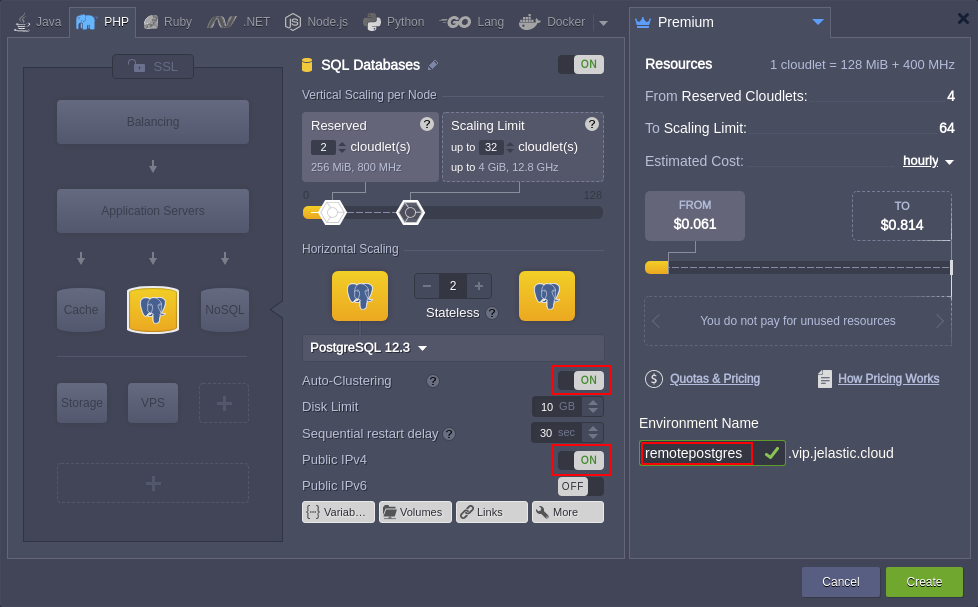
In the Environment Topology wizard, select PostgreSQL. If a database cluster is required, enable the Auto-Clustering switch. Then attach a Public IPv4, enter an environment name such as remotepostgres, and click Create.
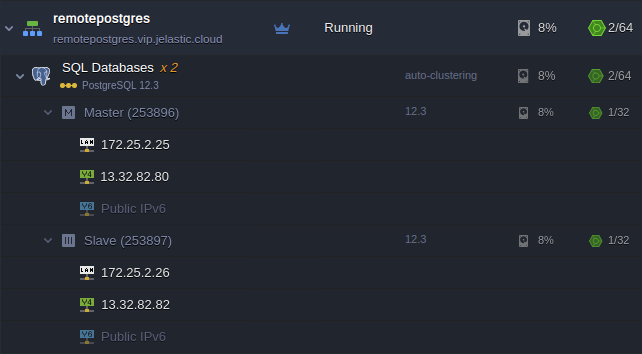
Environment creation usually takes about a minute. When the environment is ready, the PostgreSQL nodes have public IP addresses attached.
Environment without Public IP
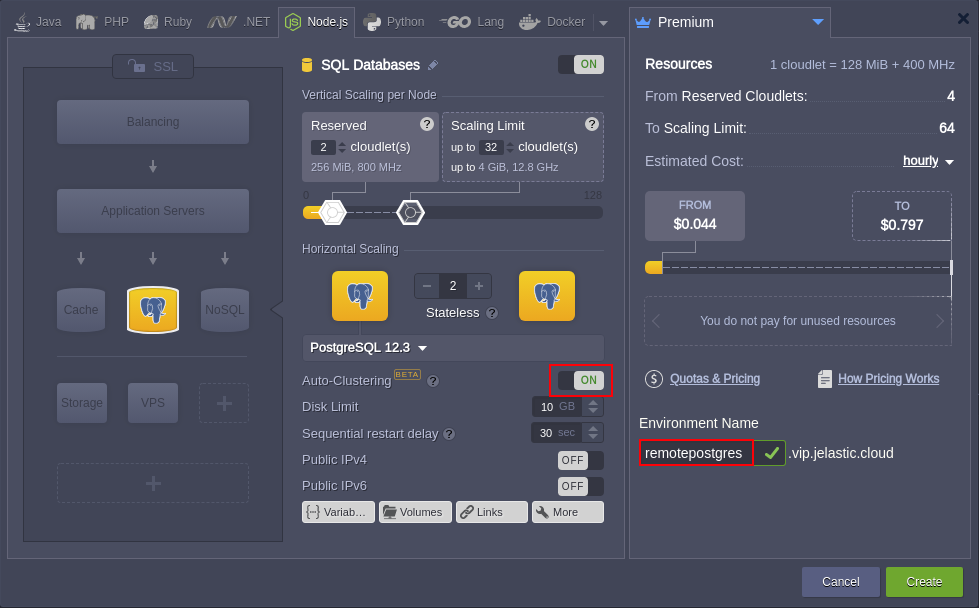
Create the PostgreSQL environment in the same way, but do not attach Public IPv4 addresses.
Open Endpoints
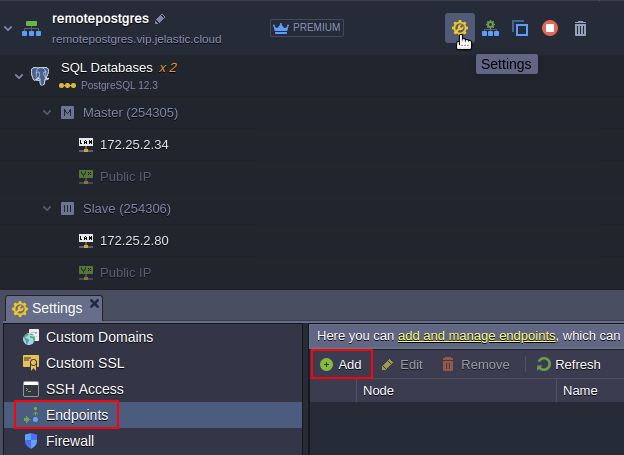
After the environment is ready, open Settings and go to Endpoints. Click Add to create a new port mapping.
Select the PostgreSQL node and service
Select the Node that should be accessed and choose the PostgreSQL service Name. The platform generates the remaining parameters automatically:
- Private Port
- Protocol
- Public Port
- Access URL
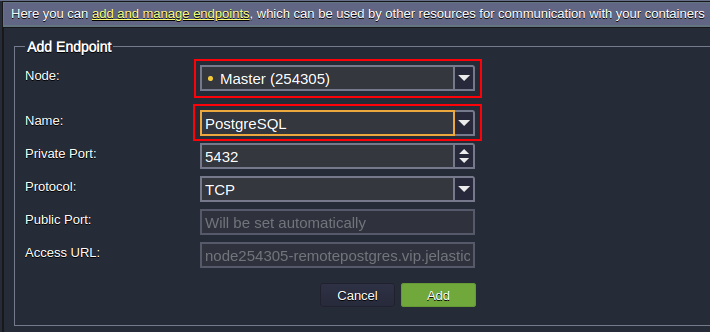
The resulting port mapping provides the public connection details for the database Master node.

If required, repeat the same process for the Slave or Secondary database node.
Remote Connection to PostgreSQL
You can use any suitable desktop or web PostgreSQL client. The source example uses pgAdmin 4.
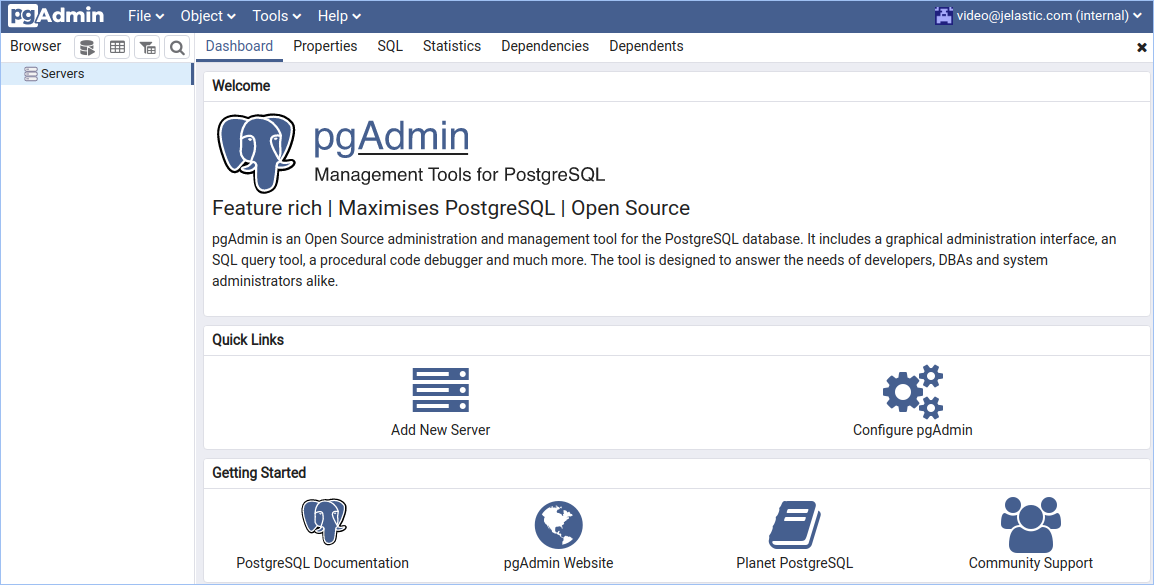
Create a server group for the cluster
If you use a PostgreSQL cluster, it is convenient to create a group containing all database servers.
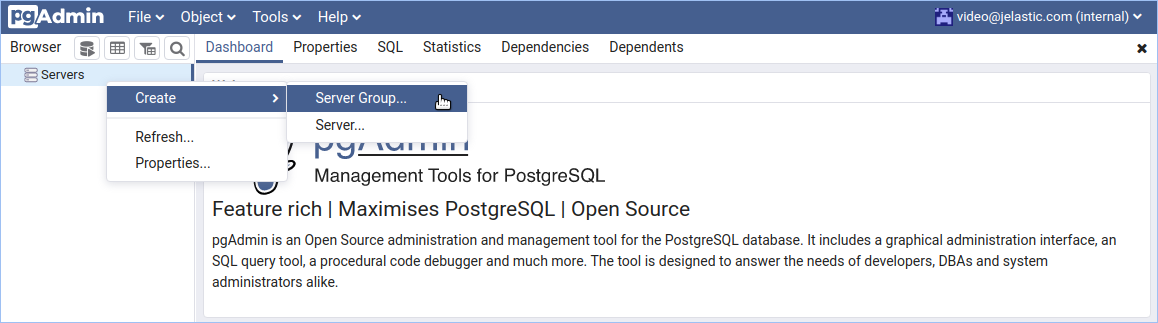
Name the group
Enter a group name, for example remotepostgres.
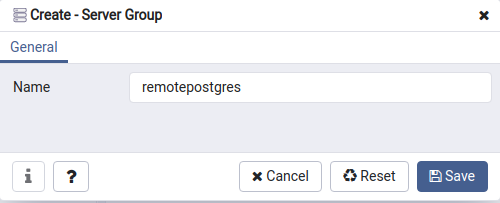
Add a PostgreSQL server
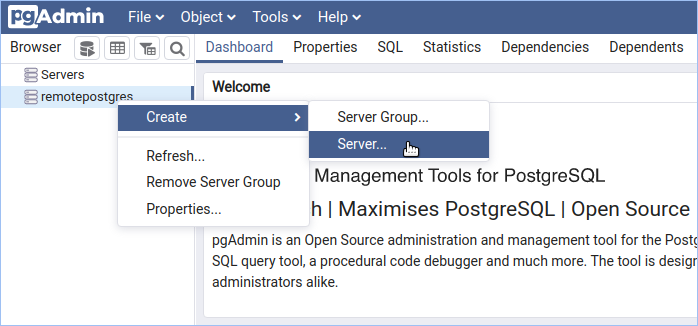
Right-click the group and select Create > Server. Repeat this for each server that belongs to the database cluster.
Set the server name
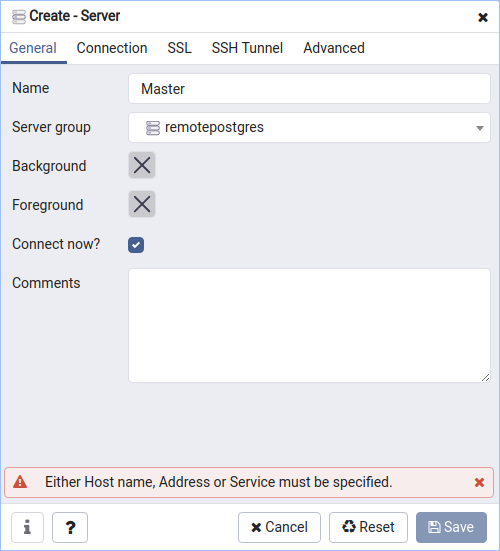
On the General tab, enter a server name such as Master for the primary database.
Connection through Public IP
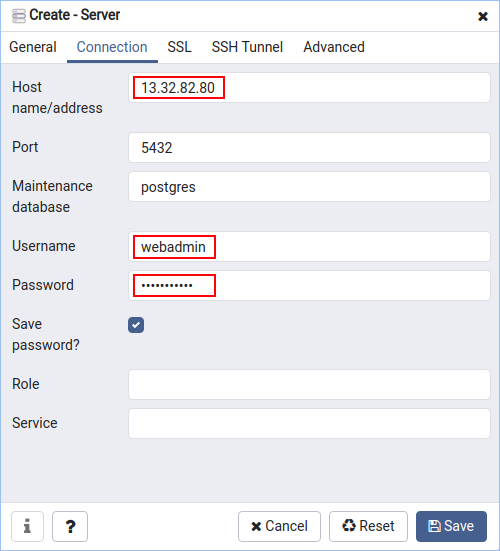
Open the Connection tab and enter the public IP address of the Master database in the Host name/address field. Enter the Username and Password supplied by the platform when the PostgreSQL environment was created.
Connection through Endpoint
If the PostgreSQL node has no public IP, use the generated endpoint values:
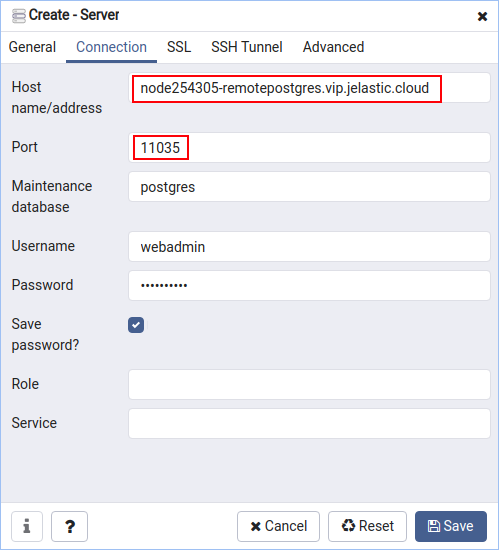
Other connection options can be adjusted when required. Click Save to apply the configuration and establish the connection.
For a cluster, configure both the Master and Slave/Secondary servers in the same way.
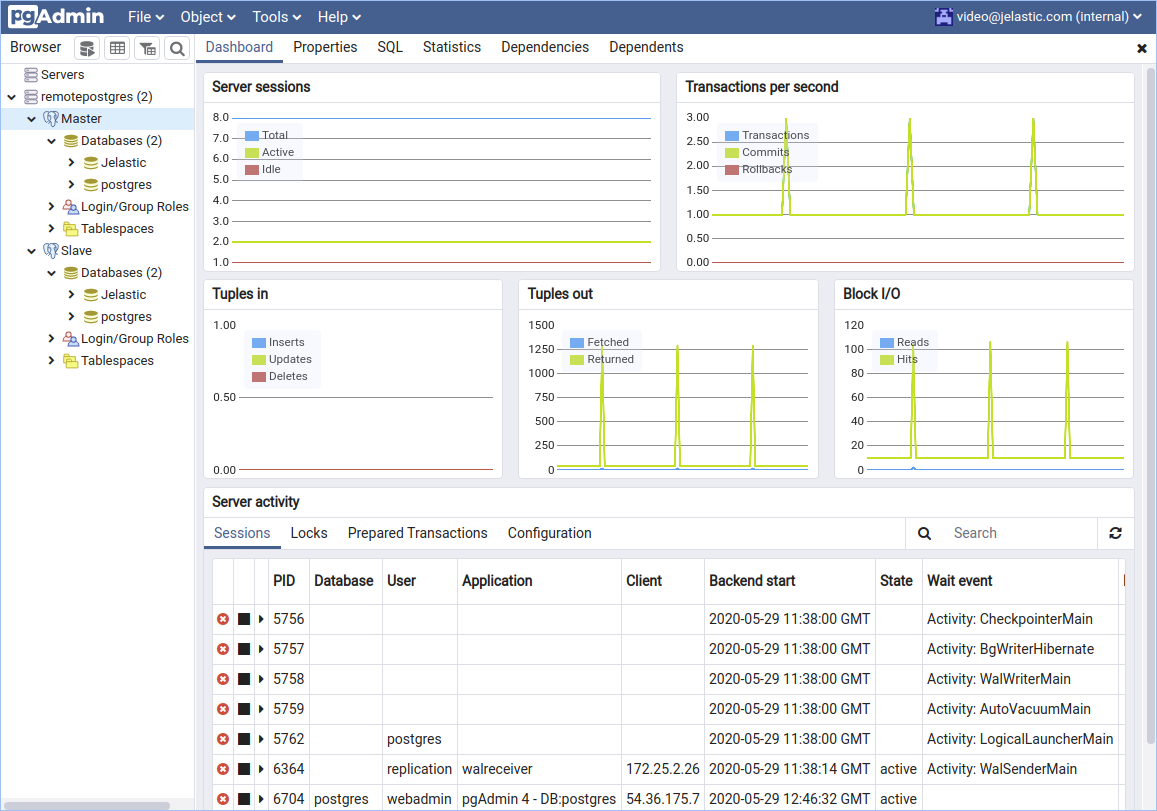
Expected Result
PostgreSQL can be managed remotely from pgAdmin 4 or another PostgreSQL client. A database with Public IPv4 is accessed directly through its public address, while a database without Public IPv4 is accessed through an Endpoint using its Access URL and Public Port.
Important Notes
- Remote PostgreSQL access can use either Public IPv4 or platform Endpoints.
- Endpoints do not require a public IP to be attached to the database node.
- For a cluster, create an endpoint separately for each node that needs remote access.
- With Public IPv4, use the database node public IP as the pgAdmin Host name/address.
- With Endpoints, use the generated Access URL and Public Port.
- Use the PostgreSQL Username and Password supplied when the database environment is created.
- pgAdmin 4 is used in the source example, but another compatible PostgreSQL client can be used.